
Sample Report: CSV Logs and the Signed PDF
What Domicile365 gives you and your advisor, and how anyone can confirm the PDF has not been changed.
Last updated: November 15, 2026 | By the Domicile365 Editorial Team
Download the Sample Files
Signed PDF report
The evidence copy. Sixteen pages: a day count summary, every location entry behind it, and a verification link.
Download the signed PDFCSV log file
The working copy. The same entries as rows you can open in Excel, sort, filter and total.
Download the CSVAltered PDF
The same report after we edited it: New York was changed from 40 days to 14. It looks genuine and fails verification.
Download the altered PDFTwo Files, Two Jobs
| CSV log file | Signed PDF report | |
|---|---|---|
| Use it for | Analysis: sorting, filtering, pivot tables, your advisor's own workpapers | Evidence: the copy you hand to an advisor, employer or tax authority |
| Contents | One row per location entry | Day count summary plus one row per location entry |
| Can it be edited? | Yes, like any spreadsheet | Any change makes verification fail |
| Can a third party check it? | No | Yes, on the Domicile365 verification page, without an account |
| Shows attestation status | Depends on the download | Yes, on every entry |
A CSV is not weak because it is a CSV. It is weak as evidence because nobody receiving it can tell whether a row was changed after it left our servers. That is the gap the signed PDF closes. For more on why an editable file struggles in an audit, see Why Excel and Spreadsheets Fail in State Tax Residency Audits.
Reading the Signed PDF
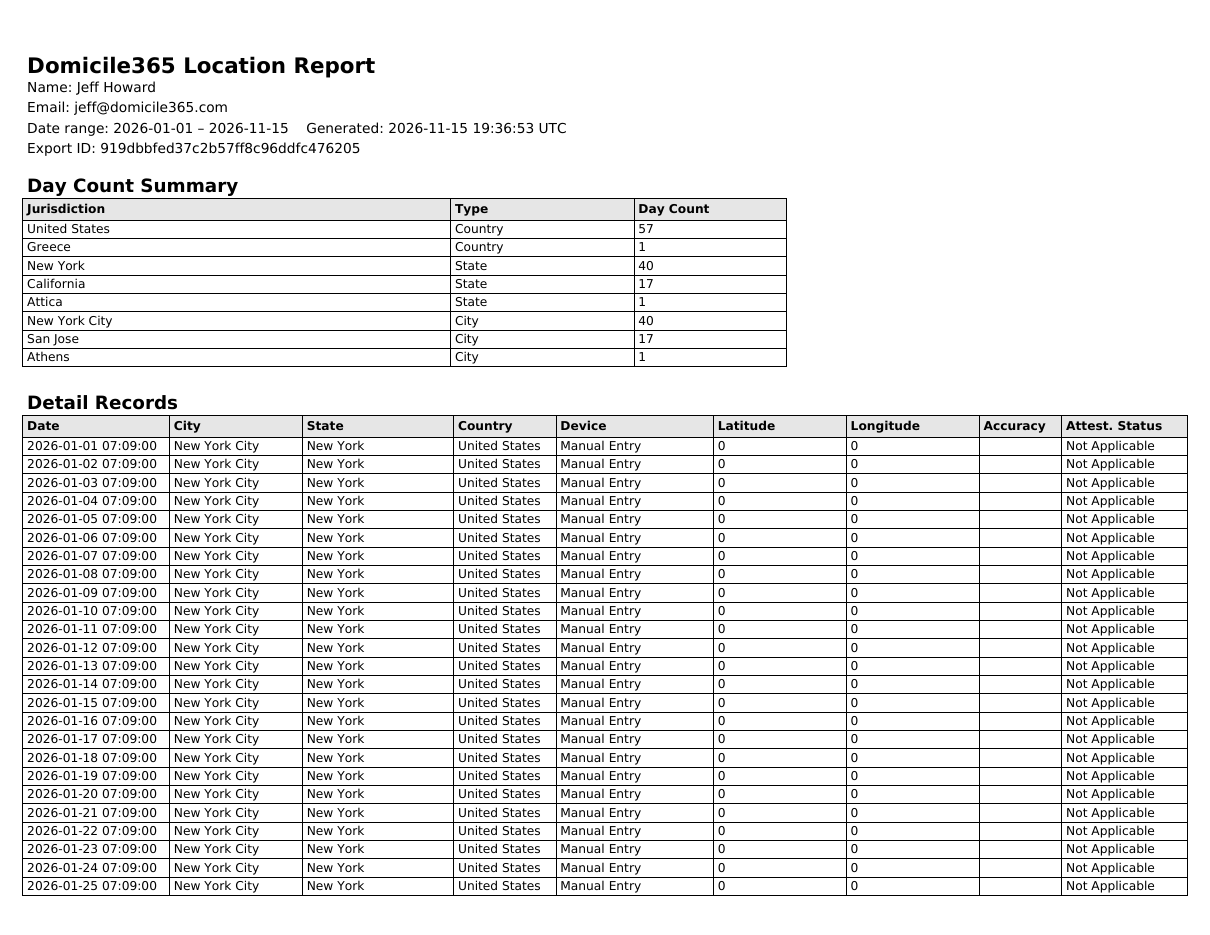
This is page 1 of the sample.
The title block
The top of the report names the account holder, the date range covered, when the report was generated (in UTC), and the Export ID. The Export ID identifies this exact file on our servers and is what a recipient uses to verify it.
Day Count Summary
The summary lists every country, state or province, and city that appears in the date range, with the number of days in each. A day counts for a place if there is at least one entry there on that date, so a travel day counts in both places. The summary is inside the signed file together with the entries it was calculated from, so the totals cannot be changed separately from the detail.
These are calendar-day counts. Some rules count differently, such as the UK midnight test or 24-hour periods; Domicile365 has separate reports for those. See What Counts as a Day for Tax Residency.
Detail Records
Every location entry in the range is listed in time order.
| Column | What it shows |
|---|---|
| Date | Date and time of the entry, as recorded by the device |
| City, State, Country | The place the coordinates fall in |
| Device | What recorded the entry, such as a phone model and app version, or "Manual Entry" for a day the user typed in |
| Latitude, Longitude | The coordinates. Manual entries have none and show 0 |
| Accuracy | The horizontal accuracy the device reported, in meters. Smaller is more precise |
| Attest. Status | Whether the entry was confirmed as coming from a genuine copy of the app on a real device (see below) |
Attestation status
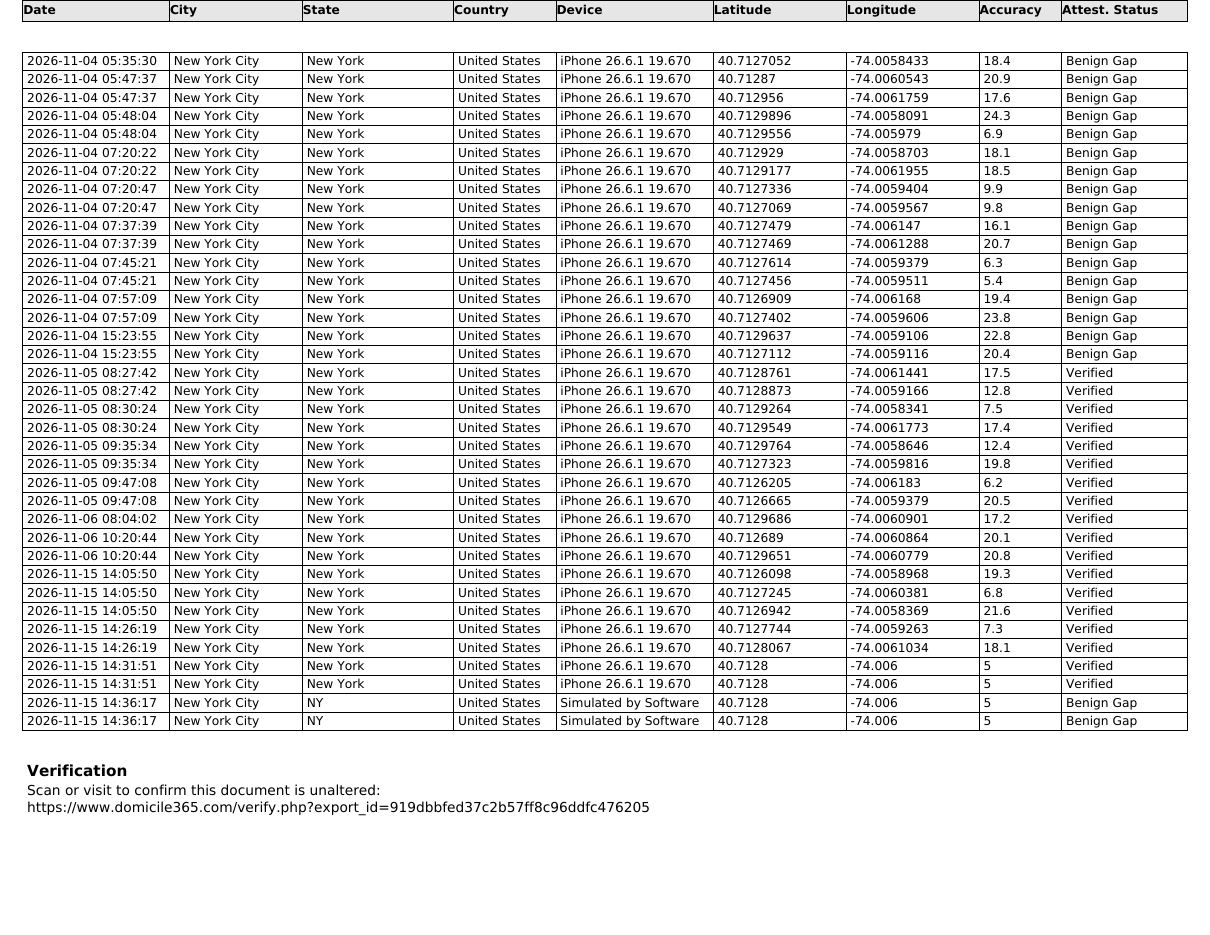
When the app sends a location, it can include a proof from the phone's own security hardware (Apple App Attest or Google Play Integrity) that the entry came from an unmodified copy of the app on a real device. The report shows the result for every entry, in one of four ways.
| Status | Meaning |
|---|---|
| Verified | The proof was present and valid. |
| Benign Gap | The proof could not be confirmed for an ordinary reason, for example the app had just been reinstalled and its key was not yet registered. The entry is kept and labelled. |
| Tamper Indicator | A proof was sent and its signature was invalid. This is the status to look into. |
| Not Applicable | No proof applies to the entry, as with a manual entry. |
The sample shows three of the four: 601 Verified entries, 24 Benign Gap entries and 35 Not Applicable manual entries. The report does not hide the entries that are not verified; it labels them so the reader can weigh them.
The verification block
The report ends with a verification link that contains the Export ID, a QR code for the same link, and a statement that no location data was manually entered except where the Device column says so. This is the end of the sample's detail records, with the link beneath them; the QR code follows on the final page.
Reading the CSV
The CSV has one row per location entry. The sample has these columns; some downloads include a few more, such as altitude, speed and attestation status.
| Column | What it shows |
|---|---|
| The account the entry belongs to | |
| Country, State, City, Province | The place the coordinates fall in |
| Latitude, Longitude | The coordinates |
| Time | When the device recorded the entry, in the device's local time |
| ServerTime | When Domicile365's server received the entry, in UTC |
| Device | What recorded the entry |
| Accuracy | Horizontal accuracy in meters |
The two time columns are worth comparing. For an entry recorded by the app they are normally seconds apart once you allow for the time zone. In the sample, the manual entries for January have a ServerTime of February 5: they were typed in weeks later, and the file shows it. An auditor can see the same thing, which is why automatic entries carry more weight than ones added afterwards.
How the Signature Works
- A fingerprint is taken. When you request a report, our server builds the PDF and calculates its SHA-256 hash, a fingerprint that changes completely if even one character of the file changes.
- The fingerprint is signed. The server signs that fingerprint with a private key that only Domicile365 holds, and stores the fingerprint and signature against the Export ID.
- Anyone can compare. When a PDF is uploaded to the verification page, the server calculates the fingerprint of the uploaded file, compares it with the stored one, and checks the signature.
The account holder cannot change the stored record, so a matching result means the file in hand is exactly the file Domicile365 generated on the date shown.
How to Confirm a PDF Has Not Been Changed
- Find the Export ID. It is at the top of page 1 and in the verification link at the end of the report.
- Open the verification page. Scan the QR code, follow the link in the report, or go to domicile365.com/verify.php and type the Export ID. No account is needed. The page shows when that export was generated and the date range it covers, which should match what is printed on the PDF.
- Upload the PDF. Choose the file and select Verify Document.
You will see one of two results.
Try it with the sample
Download the signed PDF and the altered PDF from the top of this page, then open the verification page for the sample's Export ID and upload each one in turn.
Open the verification page for the sample
Export ID: 919dbbfed37c2b57ff8c96ddfc476205. The signed PDF returns Verified. The altered PDF, which differs only in the New York day count, returns Not verified.
What Verification Does and Does Not Tell You
| It tells you | It does not tell you |
|---|---|
| The file was generated by Domicile365 | Whether the person is a resident of any place |
| When it was generated and what dates it covers | Whether the person had the phone with them |
| Nothing in it has changed since, including the day counts | Whether a manual entry is true; those are labelled so the reader can judge |
The signature protects the document. The attestation status speaks to each entry. Residency itself is a legal question for you and your tax advisor.
Keeping a Signed PDF Valid
Verification compares the whole file, so anything that rewrites the file will make it fail even if the content looks the same.
- Send the original file. Attach or share the PDF exactly as downloaded.
- Do not re-save it. "Print to PDF", "Save As", "Optimize" or "Reduce File Size" all create a different file.
- Do not mark it up. Highlights, comments, stamps and added page numbers change the file. Keep notes in a separate copy.
- Do not merge it. If it has to go into a larger bundle, provide the original alongside so it can still be checked.
- A printout cannot be uploaded. A reader of a paper copy can still scan the QR code to confirm the export exists and see its date and range, then ask for the original file.
If a file fails and you did not change it, download a fresh copy of the same report from someone who has the original, or generate a new report. A new report has a new Export ID.
Where to Get Your Own
- Signed PDF: sign in on the website, open the Day Count Listing and Alerts page, and choose a year in the Signed PDF Report box. For a custom date range, use Search Dates and select Get Signed PDF Report on the results page.
- CSV: use the download logs button on the same pages.
- Advisors: with linked client access, generate either file for a client from the client view in the Advisor Dashboard. See Domicile365 for Advisors & CPAs.
Frequently Asked Questions
Is the PDF encrypted or password protected?
No. It is signed, not encrypted. Anyone you give it to can open it, which is what lets an advisor or auditor read and verify it. It contains your location history, so send it the way you would send any confidential tax document.
Will Adobe Acrobat show a signature on the PDF?
No. The signature is kept on Domicile365's servers against the Export ID, not embedded in the file, so PDF readers do not show a signature panel. Verification is done on the Domicile365 verification page.
Does the person verifying need a Domicile365 account?
No. The verification page is public. They need the PDF file and its Export ID, which is printed on the report.
Is the CSV signed?
No. The CSV is for analysis. If someone needs assurance that the record is unchanged, give them the signed PDF for the same dates.
Why does my PDF say "Not verified" when I did not change it?
Something rewrote the file: saving it again from a PDF reader, printing to PDF, adding a comment, or merging it into another document. Use the file exactly as it was downloaded.
This page is general information, not tax advice; consult your tax advisor about your specific facts.
Related Articles
How to Choose a Residency Tracking App
Twelve things to check before you rely on a tracker.
Read MoreWhy Spreadsheets Fail in Residency Audits
What goes wrong when a day count is rebuilt by hand.
Read MoreStart Building Your Record
Use the Domicile365 App to build a location record you can export as a CSV or a signed PDF.
Sign up for a free 60-day trial and start tracking today.




Advising clients on residency? See Domicile365 for Advisors & CPAs.
Trusted Coverage & Media
As seen in Kiplinger, Fortune and the Pennsylvania CPA Journal.