
Samsung Galaxy Background Tracking Optimization
Ensuring Domicile365 accurately logs your location on Samsung Galaxy devices.
To ensure Domicile365 accurately logs your location for tax residency purposes, please update the following settings on your Samsung Galaxy device (such as the S26 Ultra). Samsung's "Device Care" will otherwise put the app to sleep, causing gaps in your residency data.
Ensure that background location tracking is toggled ON inside the Domicile365 mobile app itself.
Open Domicile365 App: Go to Settings (in the app menu).
Verify Setting: Ensure Tracking On/Off (or 'Tracking') is set to ON.
If this setting is turned OFF within the app settings menu, location tracking is paused regardless of Samsung system permissions.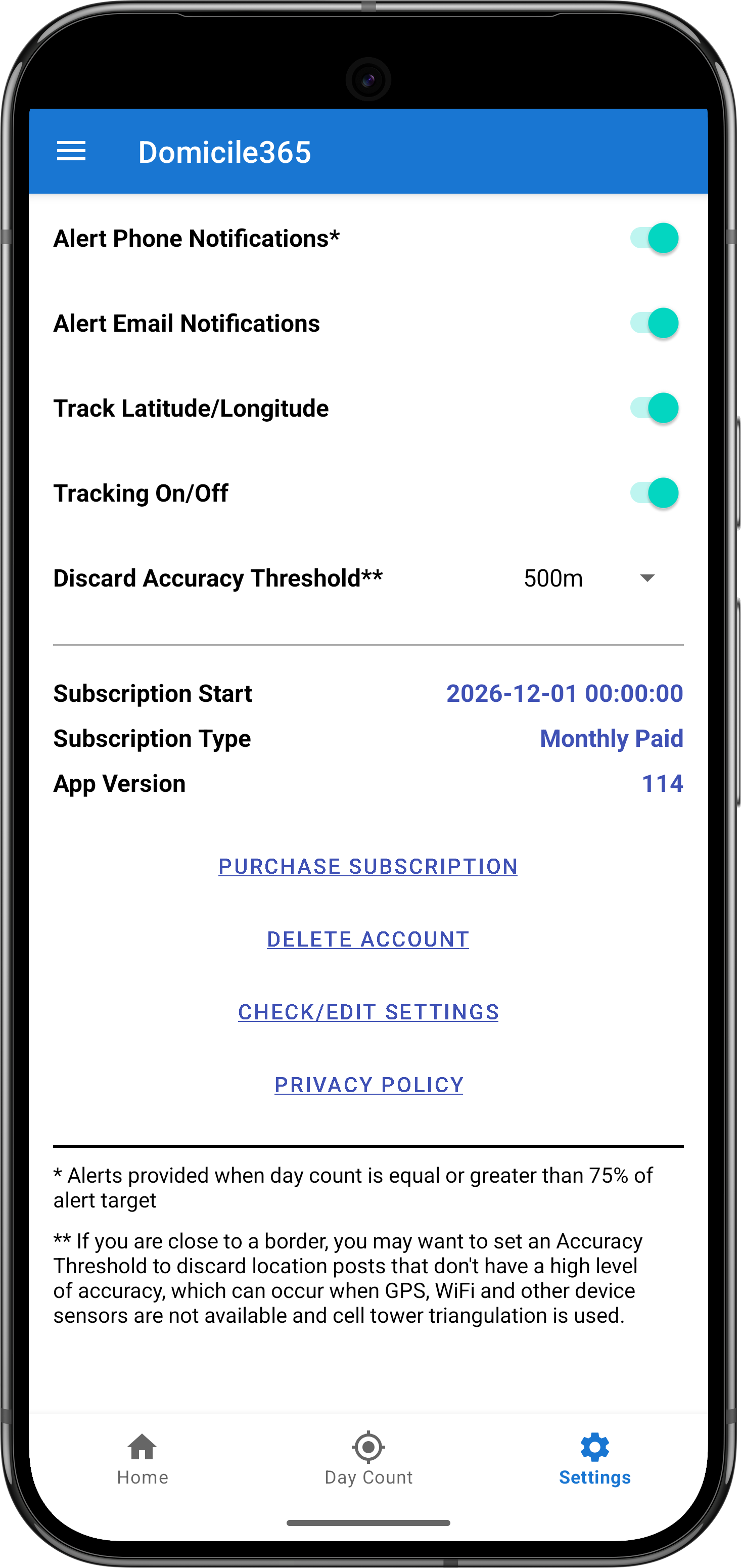
Samsung will "Deep Sleep" apps that run in the background unless explicitly told not to.
Go to: Settings > Apps > Domicile365
Tap on: Battery
Select: Unrestricted (Do not choose 'Optimized' or 'Restricted').
Android will cut off the app's ability to "post" your location to the server if it thinks you are trying to save data.
Go to: Settings > Apps > Domicile365
Tap on: Mobile Data
- Toggle ON: Allow background data usage
- Toggle ON: Allow data usage while Data saver is on
Ensure the app has "Always-on" access, even when the screen is locked.
Go to: Settings > Apps > Domicile365 > Permissions
Tap on: Location
- Select: Allow all the time
- Toggle ON: Use precise location
Samsung has a master list of apps it is forbidden to touch.
Go to: Settings > Battery > Background usage limits
Tap on: Never auto-sleeping apps
Tap the (+) icon at the top right and add Domicile365 to this list.
If you don't open the app for a few weeks, Android will automatically revoke your location permissions as a "security" feature.
Go to: Settings > Apps > Domicile365
Toggle OFF: Remove permissions if app is unused
Samsung uses Wi-Fi and Bluetooth to help pinpoint your location when GPS is weak (e.g., indoors). This is critical for the "Fused Location Provider" we use.
Go to: Settings > Location > Location services
- Tap Google Location Accuracy and toggle it ON.
- Tap Wi-Fi scanning and toggle it ON.
- Tap Bluetooth scanning and toggle it ON.
This is the strongest signal you can give Samsung to keep the app running in the background.
- Open Domicile365 so it appears on your screen.
- Swipe up from the bottom (or tap the III button) to open the Recents menu.
- Tap the App Icon at the top of the Domicile365 card.
- Select Keep open (or "Lock this app"). You should see a small lock icon appear.